

Guide 02 · Using SolCrys
AEO Dashboards and Tools
Understand your AI visibility, investigate answers and citations, and turn findings into content improvements.
PDF · 10 pages · 1.4 MB · September 2026
In this guide
Chapter links open the PDF in a new tab.
- Page 1: Start in the right workspace
Find the dashboards and tools for your next task.
Read page 1 as text
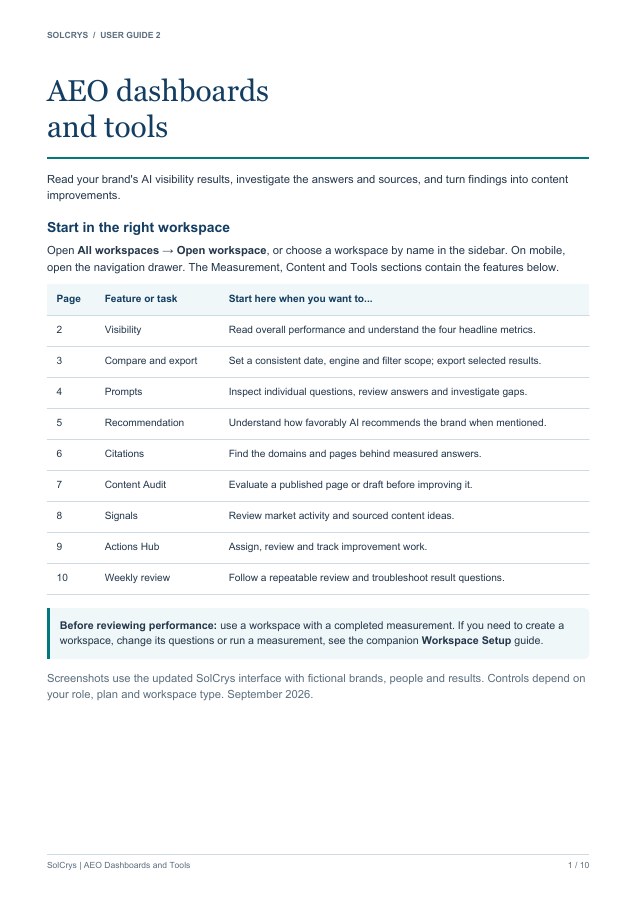
SOLCRYS / USER GUIDE 2 AEO dashboards and tools Read your brand's AI visibility results, investigate the answers and sources, and turn findings into content improvements. Start in the right workspace Open All workspaces → Open workspace, or choose a workspace by name in the sidebar. On mobile, open the navigation drawer. The Measurement, Content and Tools sections contain the features below. Page Feature or task Start here when you want to... 2 Visibility Read overall performance and understand the four headline metrics. 3 Compare and export Set a consistent date, engine and filter scope; export selected results. 4 Prompts Inspect individual questions, review answers and investigate gaps. 5 Recommendation Understand how favorably AI recommends the brand when mentioned. 6 Citations Find the domains and pages behind measured answers. 7 Content Audit Evaluate a published page or draft before improving it. 8 Signals Review market activity and sourced content ideas. 9 Actions Hub Assign, review and track improvement work. 10 Weekly review Follow a repeatable review and troubleshoot result questions. Before reviewing performance: use a workspace with a completed measurement. If you need to create a workspace, change its questions or run a measurement, see the companion Workspace Setup guide. Screenshots use the updated SolCrys interface with fictional brands, people and results. Controls depend on your role, plan and workspace type. September 2026. SolCrys | AEO Dashboards and Tools 1 / 10
- Page 2: Read your Visibility results
Understand Overall Mention, SOV Ranking, and the two citation metrics.
Read page 2 as text
SOLCRYS / AEO DASHBOARDS AND TOOLS Read your Visibility results Start with the measurement context, summary and four headline metrics. Metric How to read it Overall Mention Average mention rate across runs, weighted by the configured engine mix. A 50% rate does not necessarily mean half of all raw responses. SOV Ranking Your brand's position among the compared brands by mention rate. #2 of 4 is a rank, not a percentage. Citation - Mentions You The share of recorded citations whose cited page mentions your brand. Citation - Owned The share of recorded citations pointing to domains you identified as owned. These are measurements of the selected AI responses and citations. They are not website traffic, market share, or a promise that every user will receive the same answer. SolCrys | AEO Dashboards and Tools 2 / 10
- Page 3: Compare fairly and export a report
Set a consistent date, engine, and prompt scope before comparing or exporting.
Read page 3 as text
SOLCRYS / AEO DASHBOARDS AND TOOLS Compare fairly and export a report Set the scope before drawing conclusions 1. Choose 7d, 14d or 30d. Visibility also offers Custom dates. 2. Choose All engines or a specific engine. Use Filter to focus on the available prompt categories, personas or other attributes. 3. Check the run and response counts. Compare the same market, engine mix and question scope. Use AI Visibility for trends and engine differences, and Share of Voice for competitor comparisons. Export report reflects the filters currently applied. Share the selected view 1. On Visibility, select Export PDF. 2. In Export report, select the sections your audience needs, such as Executive Summary, AI Visibility, Share of Voice or Citations. 3. Select Export [number] sections. Open the downloaded report and check its brand, dates and filters before sharing. A dash beside a change metric can mean there is not enough prior data. If a data-quality notice says runs were excluded, read that notice before treating the displayed totals as the full run history. SolCrys | AEO Dashboards and Tools 3 / 10
- Page 4: Investigate individual prompts
Read answers, analyze gaps, and add useful findings to Actions.
Read page 4 as text
SOLCRYS / AEO DASHBOARDS AND TOOLS Investigate individual prompts Prompts connects individual questions to mentions, competitors and deeper analysis. 1. Select Prompts in the sidebar. Choose the time range and engine, then search for a question or use Filter. 2. Use By Prompt to inspect individual questions or By Category for a grouped view. Expand a row to inspect the available answer evidence. 3. Compare mentions and the Visibility SOV competitors. A question with few mentions may reveal a gap that the overall workspace average hides. 4. Select Analyze in the Analysis column. If a panel opens first, select Analyze this prompt. Wait for Queued or Analyzing to finish, then review the evidence and proposed actions. 5. Use Add to Actions for work you want the team to track. Review the recommendation before assigning it. Analysis versions belong to that prompt's analysis report. They do not change the whole workspace's prompt set. Re-analysis may have a cooldown; inactive or deleted prompts cannot start a new analysis. SolCrys | AEO Dashboards and Tools 4 / 10
- Page 5: Understand Recommendation
Compare how often a brand appears with how favorably it is recommended.
Read page 5 as text
SOLCRYS / AEO DASHBOARDS AND TOOLS Understand Recommendation The quadrant separates how often a brand appears from how favorably it is recommended. Select Recommendation to see how favorably AI recommends your brand when the brand is mentioned. This page is different from a list of tasks or recommendations for your team. Pattern Useful next step Low visibility, strong recommendation Investigate questions where the brand is absent. It may be well regarded when it appears but appear too rarely. High visibility, weak recommendation Inspect the answers for caveats, comparisons or weak positioning. Prioritize evidence and content that address those concerns. Compare brands Read both axes. Bubble size shows mention volume; a larger bubble is not automatically a better recommendation score. Use the same filters as your Visibility review. Read the prompt-level evidence before deciding what to change; a single score cannot explain every answer. SolCrys | AEO Dashboards and Tools 5 / 10
- Page 6: Find the sources behind answers
Explore citation domains and URLs, source types, and brand mentions.
Read page 6 as text
SOLCRYS / AEO DASHBOARDS AND TOOLS Find the sources behind answers Citations groups the sources used by AI answers and identifies owned and competitor domains. 1. Open Citations and choose the date range and engine. 2. Choose By Domain to understand source patterns, or By URL to inspect a particular page. Search for a domain or URL. 3. Use the available filters for Owned, Competitor, Editorial, UGC or Other. Use Mentions You to focus on sources that mention your brand. 4. Expand a row and review the associated questions and evidence. Identify which sources support your brand and where competitors appear instead. A citation is a source referenced in a measured answer. It is not a click or a backlink report. To include citation findings in a PDF, use Visibility → Export PDF and select Citations. SolCrys | AEO Dashboards and Tools 6 / 10
- Page 7: Audit a page before changing it
Review a published page or draft and prioritize content improvements.
Read page 7 as text
SOLCRYS / CONTENT WORK Audit a page before changing it Audit a published URL, or switch to Draft Content before publication. 1. Select Content Audit → Audit a Page. 2. Choose Live Webpage → Single page. Enter the full page URL. Leave the template on Auto-detect unless you know the detected page type needs correction. 3. Select Start Audit. When complete, open the report and review the findings and suggested fixes. 4. Prioritize changes that answer real customer questions and improve the quality or clarity of the page. Use Add to Actions where offered to track follow-up work. 5. Use the audit report's Export PDF when you need to share its findings. Work with a draft or a larger site Choose Draft Content to upload or paste material before publication. Whole site and Sitemap only are broader audit options when available on your plan. Start with one important page if you are new to the workflow. An audit evaluates content and produces guidance. Starting an audit or adding an action does not automatically edit or publish your website. SolCrys | AEO Dashboards and Tools 7 / 10
- Page 8: Find content ideas with Signals
Build a playbook, scan sources, and review ideas before adding work to Actions.
Read page 8 as text
SOLCRYS / AEO DASHBOARDS AND TOOLS Find timely content ideas with Signals Signals connects current market activity to content ideas and the questions your workspace tracks. It is available when enabled for your organization. Review the source and the suggested content response before adding an idea to Actions. 1. Open Signals. On first use, select Build playbook to set up sources to watch. 2. Open Playbook to review watched sources. Use Watch another source to add one, and adjust Ideas per scan if needed. 3. Select Scan sources. Check the remaining scan allowance. A scan covers the current week, even if an earlier brief is on screen. 4. Read the New ideas. Open source links, review the content angle, and check prompt labels such as Not covered or Not yet measured. 5. Select Add to Actions for an idea to pursue. Use In Actions to find ideas you have already promoted. Editors and admins with workspace permission can configure sources and scan. Viewers can read. If Skip is available, use More actions → Skip; return to Skipped → Reopen later. Adding an idea to Actions records work for your team; it does not publish content. SolCrys | AEO Dashboards and Tools 8 / 10
- Page 9: Turn findings into owned work
Assign owners, track review, and record publication in Actions Hub.
Read page 9 as text
SOLCRYS / ACTIONS HUB Turn findings into owned work Actions Hub keeps each item's status, owner and due date visible. 1. Open Actions Hub. Use an item added from a report, or select New action to capture a task yourself. 2. Open the action and make the desired outcome clear. Set an owner, priority and due date where those controls are available. 3. Use List view for a compact review or Board view to see work by stage. Use Mine and the filters to focus on your responsibilities. 4. Move the work through the available review and approval controls. For an In Progress or Approved action, open Publish, enter the Published URL and choose Mark as Published once the content is live. A weekly review you can repeat 1. Measure: open Visibility with a consistent date range and engine scope. 2. Investigate: inspect weak questions, Recommendation and Citations. 3. Improve: audit the relevant page and choose a small number of specific actions. 4. Follow through: assign owners, publish reviewed changes, then review later completed measurements. Adding an action records planned work. It does not publish content or guarantee a score increase. The board may show Approved separately; Complete groups published actions. SolCrys | AEO Dashboards and Tools 9 / 10
- Page 10: Run a weekly AEO review
Follow a repeatable review and troubleshoot result questions.
Read page 10 as text
SOLCRYS / QUICK REFERENCE Run a useful weekly AEO review A five-step review 1. Confirm the scope. Check the workspace, market, completed runs, time range and selected engines. Use consistent filters for comparisons. 2. Read the result. Start with Visibility, then use Recommendation to understand how positively the brand is described when it appears. 3. Inspect the evidence. Open Prompts and Citations. Read the answers and source pages behind a weak metric or an apparent improvement. 4. Choose specific work. Use Content Audit for a page you can improve, or Signals for timely content ideas. Add the useful findings to Actions Hub. 5. Follow through. Assign owners and dates, review changes and record publication. Review later completed measurements to see what changed. When a result needs explanation What you see What to check No results Confirm a measurement completed. Check market, dates and filters; widen to 30d if appropriate. Use Workspace Setup for measurement steps. A dash instead of a change There may be too little data or no prior period. Read the metric tooltip and run context. A sudden increase or decrease Check whether prompts, engines, market or date range changed before attributing it to your content work. Some runs were excluded Read the data-quality notice before treating displayed totals as the full run history. Analysis or scan failed Read the message and use the offered retry path. Check active questions, available sources and allowance where relevant. A measured result is evidence to investigate. It is not website traffic, a guaranteed customer answer, or proof that one content change caused the movement. Keep the source evidence with the actions you choose. SolCrys | AEO Dashboards and Tools 10 / 10
Document preview
Open PDF (new tab) · Download PDF
Interface examples use fictional brands, people, and results. Available controls depend on your role, plan, and workspace type.
Next: find out why, then plan the work
Workspace Deep Analysis