

Guide 03 · Planning improvements
Workspace Deep Analysis
See which prompts need work, find out why from the answers and the pages they cite, and turn the findings into a plan in Actions Hub.
PDF · 12 pages · 2.0 MB · October 2026
In this guide
Chapter links open the PDF in a new tab.
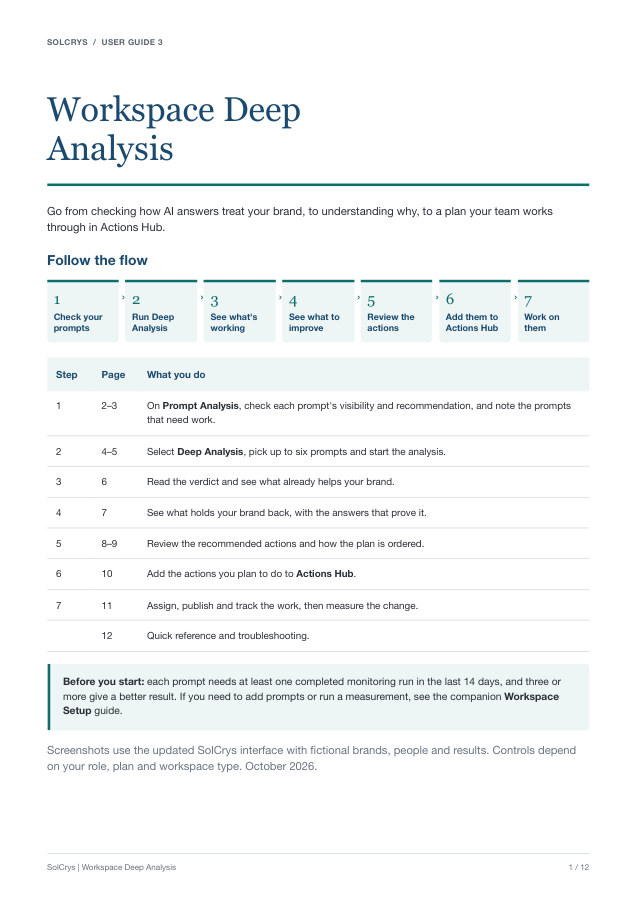
- Page 1: Follow the flow
The seven steps from checking your prompts to tracked work, and what each prompt needs first.
Read page 1 as text
SOLCRYS / USER GUIDE 3 Workspace Deep Analysis Go from checking how AI answers treat your brand, to understanding why, to a plan your team works through in Actions Hub. Follow the flow 1 › 2 › 3 › 4 › 5 › 6 › 7 Check your prompts Run Deep Analysis See what's working See what to improve Review the actions Add them to Actions Hub Work on them Step Page What you do 1 2–3 On Prompt Analysis, check each prompt's visibility and recommendation, and note the prompts that need work. 2 4–5 Select Deep Analysis, pick up to six prompts and start the analysis. 3 6 Read the verdict and see what already helps your brand. 4 7 See what holds your brand back, with the answers that prove it. 5 8–9 Review the recommended actions and how the plan is ordered. 6 10 Add the actions you plan to do to Actions Hub. 7 11 Assign, publish and track the work, then measure the change. 12 Quick reference and troubleshooting. Before you start: each prompt needs at least one completed monitoring run in the last 14 days, and three or more give a better result. If you need to add prompts or run a measurement, see the companion Workspace Setup guide. Screenshots use the updated SolCrys interface with fictional brands, people and results. Controls depend on your role, plan and workspace type. October 2026. SolCrys | Workspace Deep Analysis 1 / 12
- Page 2: Check each prompt's visibility and recommendation
Read Volume, Mentions, Visibility SOV, and Recommendation for each prompt.
Read page 2 as text
SOLCRYS / STEP 1 · CHECK YOUR PROMPTS Check each prompt's visibility and recommendation Prompt Analysis shows, for each question, how often answers mention you, who else they name and how well they recommend you. 1. Select Prompt Analysis in the sidebar. 2. Choose 14d and All engines. This is the same window Deep Analysis reads. Use Filter or the search box to focus on a topic. 3. Read each row from left to right: Column How to read it Volume An estimate of how often people ask this question: High, Medium or Low. Mentions Answers that mention your brand, out of all answers in the range. 9/9 means every answer named you. The line shows the trend. Visibility SOV The brands answers name for this question, with their counts. Your brand is highlighted. Recommendation How well the answers that mention you recommend you, from 0 to 100, with a tier such as Excellent, Good or Average. Answers that leave you out are not counted. Analysis Analyze studies one question on its own (a prompt Deep Analysis). SolCrys | Workspace Deep Analysis 2 / 12
- Page 3: Find the prompts that need work
Expand a prompt to compare engines, then note where a competitor leads or the recommendation is weak.
Read page 3 as text
SOLCRYS / STEP 1 · CHECK YOUR PROMPTS Find the prompts that need work Expand a row to see each engine's answers and recommendation score. 1. Select the arrow at the start of a row. Each engine gets its own line, with its answer count and recommendation score. 2. Read the dots. Each dot is one answer: filled when it mentions your brand, hollow when it does not, and red when it mentions you with a concern. The larger dot is the latest answer. 3. Select an engine's line to read its answers. 4. Note the prompts where a competitor leads or the recommendation is Average or lower. Here, Clearview BI is named in 8 of 9 answers to the small-team question, Perplexity never mentions Northstar Analytics, and one Gemini answer raised a concern. When you want to know why Prompt Analysis shows where you stand. Deep Analysis reads the answers and the pages they cite to explain it, and turns what it finds into actions. Prompt Analysis tells you Deep Analysis adds How often each engine mentions you, prompt by prompt Why: the sources and pages the answers rely on Which competitors the answers name What already works for you, and what holds you back How well the answers recommend you A dated plan of actions you can add to Actions Hub SolCrys | Workspace Deep Analysis 3 / 12
- Page 4: Ask Deep Analysis for insights
Choose the engines and prompts, see why a prompt is unavailable, and start the analysis.
Read page 4 as text
SOLCRYS / STEP 2 · RUN DEEP ANALYSIS Ask Deep Analysis for insights Set up the analysis 1. On Prompt Analysis, select Deep Analysis at the top right. The panel opens beside the table on New analysis. 2. Under Engines, keep the engines whose answers you want read, for example 3 of 3. 3. Under Prompts, the recommended prompts are already selected. Add the prompts you noted in step 1. One analysis covers up to 6 prompts; the count reads 5 of 6 selected. 4. Use Filter by prompt, category or persona to find a question. Each row shows its tags, its volume and its mentions, for example Low volume · 3/9 mentions. 5. Open 1 prompt can't be analyzed yet to see why a prompt is unavailable, for example No completed monitoring runs in the last 14 days. 6. Select Start analysis. A run usually takes 5 to 15 minutes, and you can leave the page. Pick prompts that belong together Findings are strongest when several prompts ask about the same need, such as setup, pricing or comparisons. Include a prompt where you do well: what works there shows what to repeat. A prompt with fewer than 3 runs can still be picked. Start notes that more runs give a better result. Deep Analysis always reads the last 14 days of answers and the pages they cite, whatever range Prompt Analysis shows. Only editors can start an analysis; everyone in the workspace can read the reports. New analysis, with the unavailable prompt opened. SolCrys | Workspace Deep Analysis 4 / 12
- Page 5: Follow the analysis
Track the run's steps, read the header button, and stop a run when you need to change it.
Read page 5 as text
SOLCRYS / STEP 2 · RUN DEEP ANALYSIS Follow the analysis While a run works, the header button and the run card show the same step. 1. After Start analysis, the run card takes Start's place. It names the run by its engines and date, for example All engines · Oct 10, with its start time and prompt count. 2. Read the step: Reading answers and cited pages (step 1), Writing the analysis (step 2), then Checking the analysis and publishing it (step 3). 3. Close the panel or leave the page whenever you like. The report waits under All reports. 4. Select Stop to cancel the run, for example to change its prompts or engines. Then start a new analysis. Read the header button State Button Meaning Ready to start Opens the panel. With no run in progress, start on New analysis. Running A run is working. Select it to see the run card. Finished A report finished while you were away. Select it to open the report; the dot clears once you have seen it. If a run shows Didn't finish, open it to read why. When there was too much evidence for one analysis, select Analyze again with fewer prompts. SolCrys | Workspace Deep Analysis 5 / 12
- Page 6: Read the verdict and what's working
Read the report header, the mentions per engine, the verdict, and the sources that already help you.
Read page 6 as text
SOLCRYS / STEP 3 · SEE WHAT'S WORKING Read the verdict and what's working The report opens on Diagnosis: the header, mentions per engine, the verdict and what's working. Part How to read it Report header Ready, then Workspace, market and date. The line under the name counts the prompts, responses and engines analyzed. Tabs Diagnosis, Actions with its task count, and Tracked cards with the tasks already in Actions Hub. Engine bars Answers that mention your brand, out of the answers analyzed, best engine first. 4 / 15 means 4 of 15 Perplexity answers named Northstar Analytics. Verdict One sentence that sums up the analysis. Read it before the details. What's working Sources that already help you, such as a roundup that names your brand and that every engine cites. Keep them accurate and current. The bars count answers, not traffic. If no engine mentions your brand, Diagnosis shows No AI visibility for these prompts and lists every finding under what holds you back. Select the expand icon at the top of the panel for a full-width view, and Back to side panel to return. SolCrys | Workspace Deep Analysis 6 / 12
- Page 7: See what holds your brand back
Read each finding's engines, type, and reach, and check the answers that prove it.
Read page 7 as text
SOLCRYS / STEP 4 · SEE WHAT TO IMPROVE See what holds your brand back Each finding names its engines, type and reach, then shows the answers that prove it. 1. Read the engine chip above each finding, such as ALL ENGINES or CHATGPT · PERPLEXITY. Findings are grouped by the engines they come from. 2. Read the type and reach, for example Content gap · 2 of 5 prompts, then the statement. 3. Check the evidence. Each row gives the engine, the answer's own words, the prompt and, when there is one, the cited page. Select Show 1 more for the rest. 4. Select a task under Addressed by to see the action that fixes it. Finding type What it means Content gap Answers need information none of your pages gives, so they quote someone else's. Competitor advantage Answers rely on sources that favor a competitor, such as its own comparison guides. Owned content not cited You have a relevant page, but answers do not cite it for these prompts. Citation source A page the answers cite. Under What's working, it already names your brand. SolCrys | Workspace Deep Analysis 7 / 12
- Page 8: Review the recommended actions
Read where to publish, why, what to cover, and each task's effort and impact.
Read page 8 as text
SOLCRYS / STEP 5 · REVIEW THE ACTIONS Review the recommended actions The Actions tab states the plan in one sentence, then lists Week 1. Card part What it tells you Publish to The channel and the page. 1P Owned is your own site, 3P Editorial another site's listing or article, and a post names its platform, such as YouTube. New page or New post means it does not exist yet. Title The task in one line. Select it to fold the card. Why do this What the answers show, and why this page matters to them. Key points to cover What the page, listing or pitch should say. Kind Page edit, New page, Listing, Pitch, Post, Case study and others, at the card's lower left. Effort, Impact Low, medium or high. Point to Impact to read why, for example Cited on 3 of 5 prompts in answers that leave Northstar Analytics out. Potential impact The engines whose answers cite the page, and how many prompts the task can move. Select it to list those prompts. Add to Actions Sends the task to Actions Hub (step 6). The filled button marks the next Week 1 task not yet added. SolCrys | Workspace Deep Analysis 8 / 12
- Page 9: See how the plan is ordered
Understand how tasks are placed in Week 1 and Weeks 2–3, and how effort and impact are set.
Read page 9 as text
SOLCRYS / STEP 5 · REVIEW THE ACTIONS See how the plan is ordered Select See how this plan is built for the rules behind the order. Rule How it works Week 1 The 3 tasks with the highest impact. On a tie, lower effort comes first, then the analysis's own order. Weeks 2–3 The remaining tasks, grouped by channel: 1P Owned, 3P Editorial and UGC. Effort Low for new content and edits on your own site, posts on your own channels and replies in Reddit threads the answers cite. High for listings and pitches on other sites. Impact How many of your prompts have answers citing the page, how often, and from how many engines. A new page reads medium at most until answers cite it. Tasks below medium are left out. Weeks 2–3 opens from its heading. Each channel group lists its tasks. Dates follow the report: Week 1 is the 7 days from the day it finished, and Weeks 2–3 the 14 after. A note beside a destination, such as publisher not confirmed or not cited yet, means the checks could not confirm it. Verify it before you act. SolCrys | Workspace Deep Analysis 9 / 12
- Page 10: Add planned actions to Actions Hub
Add the tasks you plan to do, review tracked cards, and return to earlier reports.
Read page 10 as text
SOLCRYS / STEP 6 · ADD THEM TO ACTIONS HUB Add planned actions to Actions Hub After Add to Actions, the card shows In Actions Hub and an Open link. 1. Start with Week 1. Select Add to Actions on each task you plan to do. The card changes to In Actions Hub, and the plan's line counts the tasks added, for example 3 added to Actions Hub. 2. Add tasks from Weeks 2–3 when your team has room for them. Leave out any you decide not to do. 3. Open Tracked cards to see every task from this report and its status in Actions Hub. Tracked cards lists this report's tasks in Actions Hub, with their status. Come back to a report 4. Select All reports in the panel. Workspace and prompt reports share one list, newest first; workspace rows show their engines, time, prompt count and action count. 5. Select a row to open the report. Each report keeps the engines, prompts and evidence it ran with. All reports, newest first. SolCrys | Workspace Deep Analysis 10 / 12
- Page 11: Work on the actions
Assign, review, and publish the work in Actions Hub, then measure the change.
Read page 11 as text
SOLCRYS / STEP 7 · WORK ON THEM Work on the actions Actions Hub shows each task's stage, owner and due date. Three days later, the Week 1 tasks are under way. 1. Select Open on a task card, or open Actions Hub in the sidebar. In List view, tasks from the analysis show Workspace Deep Analysis as their source. 2. Open a task to read its brief from the analysis: where to publish, the key points and the evidence behind it. 3. Set an owner, priority and due date where those controls are available. 4. Move the task through Todo, In Progress, In Review and Approved as the work progresses. In Board view, drag the card to its new column. 5. When the content is live, open Publish, enter the Published URL and choose Mark as Published. The task moves to Complete. Measure the change 6. After monitoring has run for another 14 days, return to Prompt Analysis and compare Mentions and Recommendation for the prompts the task named. 7. Open the report and select Analyze again for a new analysis with the same engines. Compare it with the earlier report under All reports. Adding an action records planned work. It does not publish content or guarantee a better result; the next measurements show what changed. SolCrys | Workspace Deep Analysis 11 / 12
- Page 12: Quick reference and troubleshooting
The seven steps on one page, and what to check when a result needs explanation.
Read page 12 as text
SOLCRYS / QUICK REFERENCE The flow at a glance 1. Check your prompts. On Prompt Analysis, choose 14d, read Mentions, Visibility SOV and Recommendation, and expand the rows that look weak. 2. Run Deep Analysis. Select Deep Analysis, pick up to 6 prompts about the same need and select Start analysis. 3. See what's working. Read the verdict, the engine bars and What's working. 4. See what to improve. Read each finding under what holds your brand back, and check its evidence. 5. Review the actions. On Actions, read Week 1 first: where to publish, why, what to cover, effort and impact. 6. Add them to Actions Hub. Select Add to Actions on the tasks you plan to do. 7. Work on them. Assign owners and dates, publish, mark tasks published, then measure and analyze again. When a result needs explanation Question What to check A prompt can't be analyzed It needs a completed monitoring run in the last 14 days, and it must be active. Open the unavailable list for the reason. Start analysis is unavailable Select at least one engine and one prompt. Only editors can start an analysis. The run says Didn't finish Open it for the reason. If there was too much evidence, analyze again with fewer prompts. No actions this time No task passed the checks. The Diagnosis still applies, and the tab gives the reason. A task you expected is missing Tasks below medium impact are left out. Check whether the answers analyzed cite the page you had in mind. Deep Analysis reads only the picked prompts and engines over the last 14 days. Numbers differ from Prompt Analysis A destination has a note publisher not confirmed or not cited yet: confirm the site accepts the listing or pitch before you start. Findings describe the measured AI answers and the pages they cite. They are not website traffic, and a task's impact is an estimate of reach, not a promise of results. SolCrys | Workspace Deep Analysis 12 / 12
Document preview
Open PDF (new tab) · Download PDF
Interface examples use fictional brands, people, and results. Available controls depend on your role, plan, and workspace type.
Need to configure your workspace?
Workspace Setup