

Guide 04 · Connecting assistants
SolCrys AEO MCP
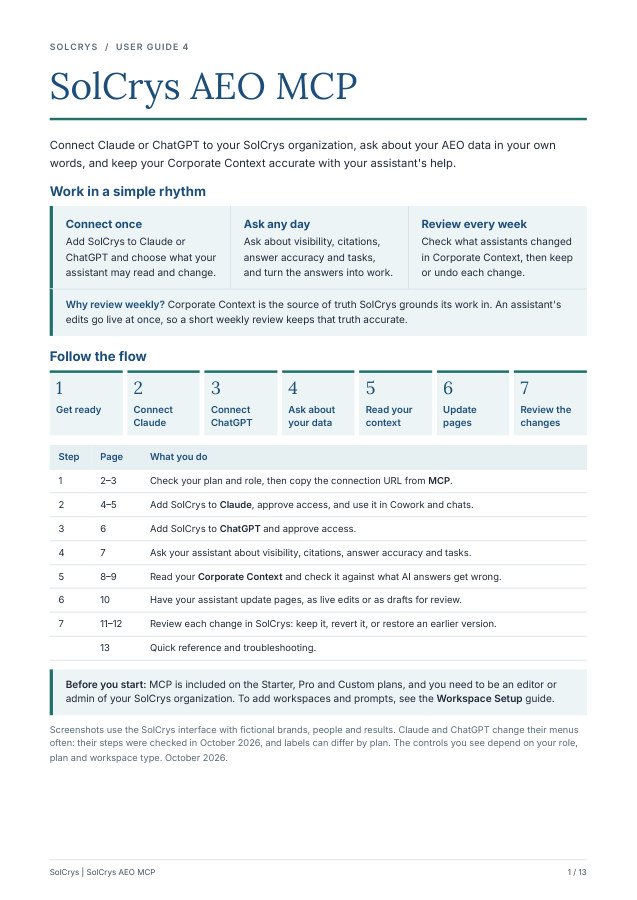
Connect Claude or ChatGPT to your SolCrys organization, ask about your AEO data in your own words, and keep your Corporate Context accurate with your assistant's help.
PDF · 13 pages · 1.3 MB · October 2026
In this guide
Chapter links open the PDF in a new tab.
- Page 1: Follow the flow
The weekly rhythm, the seven steps from connecting your assistant to reviewing its changes, and what you need first.
Read page 1 as text
SOLCRYS / USER GUIDE 4 SolCrys AEO MCP Connect Claude or ChatGPT to your SolCrys organization, ask about your AEO data in your own words, and keep your Corporate Context accurate with your assistant's help. Work in a simple rhythm Connect once Add SolCrys to Claude or ChatGPT and choose what your assistant may read and change. Ask any day Ask about visibility, citations, answer accuracy and tasks, and turn the answers into work. Review every week Check what assistants changed in Corporate Context, then keep or undo each change. Why review weekly? Corporate Context is the source of truth SolCrys grounds its work in. An assistant's edits go live at once, so a short weekly review keeps that truth accurate. Follow the flow 1 Get ready 2 Connect Claude 3 Connect ChatGPT 4 Ask about your data 5 Read your context 6 Update pages 7 Review the changes Step Page What you do 1 2–3 Check your plan and role, then copy the connection URL from MCP. 2 4–5 Add SolCrys to Claude, approve access, and use it in Cowork and chats. 3 6 Add SolCrys to ChatGPT and approve access. 4 7 Ask your assistant about visibility, citations, answer accuracy and tasks. 5 8–9 Read your Corporate Context and check it against what AI answers get wrong. 6 10 Have your assistant update pages, as live edits or as drafts for review. 7 11–12 Review each change in SolCrys: keep it, revert it, or restore an earlier version. 13 Quick reference and troubleshooting. Before you start: MCP is included on the Starter, Pro and Custom plans, and you need to be an editor or admin of your SolCrys organization. To add workspaces and prompts, see the Workspace Setup guide. Screenshots use the SolCrys interface with fictional brands, people and results. Claude and ChatGPT change their menus often: their steps were checked in October 2026, and labels can differ by plan. The controls you see depend on your role, plan and workspace type. October 2026. SolCrys | SolCrys AEO MCP 1 / 13
- Page 2: Check your plan and role
What your assistant can do with each permission, what your role allows, and the monthly MCP calls on each plan.
Read page 2 as text
SOLCRYS / STEP 1 · GET READY Check your plan and role SolCrys MCP lets an AI assistant work with your SolCrys data through the Model Context Protocol (MCP), an open standard that Claude, ChatGPT and other assistants support. Your assistant calls SolCrys tools to read your data and, when you allow it, to update Corporate Context. What your assistant can do Area Your assistant can Permission Workspaces List your workspaces and their activity counts. read:workspace Visibility and prompts Read headline visibility, share of voice, results per engine, and presence and trends for each prompt. read:prompts read:responses Citations Read which pages and domains AI answers cite, and which of them mention you. read:citations Deep Analysis and Actions Hub Read Deep Analysis reports and Actions Hub tasks, and mark a task as published with its URL. read:deep-analysis read:actions · write:actions Content audits and Answer Accuracy Read audit reports, and the pass or fail verdict for each AI answer with the claims it got wrong. read:content-audits read:answer-accuracy Corporate Context Read pages and grounding, create drafts for review, and create, edit or remove pages live. read:corporate-context write:corporate-context write:corporate-context- live What your role allows Role Can connect What the connection reaches Admin Yes Everything above. Admins see every connection in the organization and can revoke any of them. Editor Yes Corporate Context and the workspace list only. Reading AEO data such as prompts and citations needs an admin's connection. Editors see and revoke their own connections. Viewer No Ask an organization admin for editor access. Monthly MCP calls Plan Calls per month Free Not included Starter 500 Pro 2,500 Custom Unlimited Each tool your assistant calls counts once, and a broad question can use several calls. The count is shared by everyone in the organization and resets on the first day of each month (UTC). Each connection can make up to 60 calls a minute. Each person connects their own assistant. Everything a connection changes is recorded under the name of the person who approved it, with the app it came through, for example Maya Chen via Claude. SolCrys | SolCrys AEO MCP 2 / 13
- Page 3: Copy your connection URL
Open MCP from your account menu, copy the URL, and read each connected app's row.
Read page 3 as text
SOLCRYS / STEP 1 · GET READY Copy your connection URL MCP → Connected Apps shows the URL to share and every assistant connected to your organization. 1. Open your account menu at the bottom left of SolCrys and select MCP. 2. On Connected Apps, select Copy URL. The address is https://mcp.solcrys.com/mcp , and everyone in your organization uses the same one. 3. After you approve an assistant (steps 2 and 3), it appears in this list within about a minute. Row part What it tells you Name The name the app gave itself, such as Claude or ChatGPT. Permissions What the connection may do. A connection with all nine read permissions and no write permission shows All read scopes. Last used, Granted by When the assistant last called SolCrys, how many active sign-ins it has, and who approved it. View activity Every Corporate Context change made through this connection (step 7). Revoke Disconnects the app within about 60 seconds. To use SolCrys again, connect the assistant again. Personal Access Tokens is for tools that can't sign in through a browser, such as scripts. Claude and ChatGPT use the consent screen, so most people never need a token. SolCrys | SolCrys AEO MCP 3 / 13
- Page 4: Add SolCrys to Claude
Add the custom connector, sign in on the SolCrys consent screen, and choose what Claude may read and change.
Read page 4 as text
SOLCRYS / STEP 2 · CONNECT CLAUDE Add SolCrys to Claude 6 more read permissions The SolCrys consent screen. Writes you can grant start on. Add the connector Claude Pro or Max, on the web or in the desktop app: 1. Open Customize → Connectors (on older versions, Settings → Connectors). 2. Select + Add → Add custom connector. Name it SolCrys and paste the URL from step 1. 3. If Claude asks how to sign in, keep Sign in now and choose Register automatically. Leave Client ID and Secret blank. Select Add. 4. Select Connect. The SolCrys consent screen opens; the desktop app opens it in your browser. Sign in to SolCrys if asked. Claude Team or Enterprise: an owner first adds SolCrys under Organization settings → Connectors. Each member then finds it under Customize → Connectors, marked Custom, and selects Connect. Approve access 5. Under Authorize for, choose your SolCrys organization. 6. Review Read access and Write access. Untick anything Claude shouldn't do. 7. Select Authorize. You return to Claude, and SolCrys shows as Connected. Live edits are the last write permission: Create, edit, and remove Corporate Context pages without a review step. Leave it on to let Claude maintain pages for you; each change is recorded and can be reverted (step 7). Untick it if you only want drafts. SolCrys | SolCrys AEO MCP 4 / 13
- Page 5: Use SolCrys in Cowork and chats
Turn SolCrys on, decide which tools need your approval, and connect Claude Code or Codex.
Read page 5 as text
SOLCRYS / STEP 2 · CONNECT CLAUDE Use SolCrys in Cowork and chats Turn SolCrys on 1. In a chat or a Cowork task, select + → Connectors and turn on SolCrys. Cowork uses the connectors on your Claude account and loads them when a task starts. 2. Ask "Use SolCrys to list my workspaces." If Claude lists them, you're connected. Decide what needs your approval Claude asks before it uses a tool: Allow once or Always allow. To set this ahead of time, open Customize → Connectors → SolCrys → Tool permissions and choose Always allow, Needs approval or Blocked for each tool. Tool What it does Suggested solcrys_get_..., solcrys_list_... Read your data. Always allow solcrys_propose_cc_page Creates a Corporate Context draft. Nothing changes until an editor publishes it. Always allow solcrys_write_cc_page Creates, edits or removes a live Corporate Context page. Needs approval solcrys_publish_task Marks an Actions Hub task as published, with its URL. Needs approval Working in Cowork Cowork can run longer tasks, such as checking every page against your website: "Use SolCrys. Check every live Corporate Context page for Northstar Analytics against https://www.northstar.example/ and its product pages. Make a table of page, outdated or missing line, evidence and fix, then save the fixes as drafts for review." Keep Cowork in Manual mode, or keep solcrys_write_cc_page on Needs approval, so you see each page edit before it goes live. Cowork needs a paid Claude plan; Claude Free allows one custom connector. Before a Research run: Claude's Research mode can call connector tools without asking. Set solcrys_write_cc_page to Blocked or turn SolCrys off for that chat. Claude Code and Codex In a terminal, add SolCrys, then sign in on the same consent screen: Tool Command Claude Code claude mcp add --transport http solcrys https://mcp.solcrys.com/mcp, then /mcp to sign in Codex codex mcp add solcrys --url https://mcp.solcrys.com/mcp, then codex mcp login solcrys Changes from Codex show as via Codex. SolCrys | SolCrys AEO MCP 5 / 13
- Page 6: Add SolCrys to ChatGPT
Add SolCrys as a plugin or app, approve access, check your ChatGPT plan, and use it in a chat.
Read page 6 as text
SOLCRYS / STEP 3 · CONNECT CHATGPT Add SolCrys to ChatGPT Leo, an editor, connecting ChatGPT. Permissions only an admin can grant are marked Admin only. Check your ChatGPT plan Business, Enterprise and Edu: SolCrys tools including writes, in beta and on the web only. An admin first turns on developer mode for the workspace. Pro: read tools only, in developer mode. For other plans, check OpenAI's current plan details. Add the app ChatGPT is renaming Apps to Plugins, so your account shows one of these: 1. Plugins: go to chatgpt.com/plugins, select + → Add custom MCP server, name it SolCrys, and paste the URL under Connection. Apps: in Settings, turn on Developer mode under Apps → Advanced settings, then select Create, name it SolCrys and paste the URL. 2. Choose OAuth for authentication. Confirm the warning about custom servers. 3. The SolCrys consent screen opens. Choose your organization, review the permissions and select Authorize. 4. Finish with Create (and install the plugin, on the Plugins flow). To share it with your ChatGPT workspace, an admin publishes it under Workspace settings → Apps → Drafts. Use it in a chat 5. Pick SolCrys with @, the + menu or Plugins in the message box. Pick it again on each message where you want it. 6. ChatGPT asks before each write. Choose Allow once for Corporate Context edits, so you see each one. Deep research only reads, and agent mode doesn't use custom apps. When SolCrys adds tools, an admin refreshes the app before ChatGPT can use them. How ChatGPT changes are labeled: in SolCrys, edits made through ChatGPT read via an MCP app, with the connection shown as ChatGPT · chatgpt.com. SolCrys | SolCrys AEO MCP 6 / 13
- Page 7: Ask about your AEO data
Questions to ask about visibility, prompts, citations, Answer Accuracy, tasks, and content audits.
Read page 7 as text
SOLCRYS / STEP 4 · ASK ABOUT YOUR DATA Ask about your AEO data Ask in your own words. Your assistant picks the SolCrys tools, reads the data and explains it. Name the workspace and the period when it matters: most SolCrys data covers the last 7, 14, 30 or 60 days. You want to decide Ask, for example Your assistant reads Where to focus "Compare our visibility by engine for the last 30 days with the 30 days before. Which engine should we work on first, and why?" Visibility insights Which prompts to fix "Which prompts lost the most presence in the last 30 days? For each, give the likely cause and one fix to try." Prompt insights, Deep Analysis Where to earn mentions "Which domains do AI answers cite most for our prompts? Sort them into ours, competitors' and editorial, and pick three to pitch." Citations What to correct "Group the last 30 days of Answer Accuracy failures by type. Show one example each, and say if Corporate Context or our website needs the fix." Answer Accuracy What to do this week "Using our latest Deep Analysis, pick three open high-priority Actions Hub tasks for this week, and say what each one needs." Deep Analysis, tasks Which pages to improve "Which fixes from the latest content audit would raise its score most? List the page and the exact change for each." Content audits EXAMPLE CONVERSATION · ILLUSTRATIVE YOU Use SolCrys. For Northstar Analytics, which three prompts need the most work, why, and what should we do next for each? ASSISTANT ↳ solcrys_get_prompts_insights · solcrys_get_citations_insights Over the last 14 days, three prompts stand out: Which BI tools are easiest for a small team to adopt? You're named in 3 of 9 answers, and they lean on a roundup that doesn't list you. Next: ask the roundup's editor to review Northstar. Which analytics platforms offer the fastest setup? 2 of 9 answers, down from 4 in the period before. Next: state your setup time on your getting-started page. What reporting tool should a data lead choose? 5 of 9 answers, but none of them cite your own pages. Next: publish a buyer's guide for data leads. Tips With more than one workspace, start with "Use SolCrys to list my workspaces" and then name the one you mean. Ask for the period and engine behind each number, and which SolCrys data the answer came from. Turn findings into work: "Turn these into three tasks, each with an owner, the page to change and the prompt to watch." Your assistant drafts them; it can't add them to Actions Hub for you. Close the loop when the page is live: "Mark the setup guide task as published at https://www.northstar.example/guides/setup." This works for Deep Analysis tasks that are approved or in progress. If you're an editor, your connection reads Corporate Context only. AEO data needs an admin's connection. Numbers come from SolCrys measurements of AI answers and the pages they cite. They are not website traffic. SolCrys | SolCrys AEO MCP 7 / 13
- Page 8: Know your Corporate Context
Find Needs review, the page types, and how scope decides which page applies.
Read page 8 as text
SOLCRYS / STEP 5 · READ YOUR CONTEXT Know your Corporate Context Corporate Context is your organization's source of truth: the facts, messaging and guidance SolCrys grounds its work in. Answer Accuracy scores AI answers against it, SolCrys features read it, and so do assistants you connect. Corporate Context, with four assistant changes waiting under Needs review. 1. Select Corporate Context in the sidebar, under All Workspaces. Editors and admins see it. 2. Read Needs review first: it lists changes waiting for a person (step 7). 3. Below it, pages are grouped By type or By scope. A ● Review chip marks a page with an unreviewed change. Page type What it holds Grounds Answer Accuracy Facts The canonical facts AI engines must get right: company, products, plans, security. One page per scope. Yes, by default Messaging Framework Your positioning and proof points. One page per scope. Yes, by default Writing Guidance Voice, tone and terminology for a channel, such as your blog or LinkedIn. Several pages per scope. Not by default Your own types Types an editor adds with manage them for your organization. If an editor pins them Scope: a page is either Organization — shared, for every workspace, or belongs to one workspace. For that workspace, a workspace page replaces an organization page of the same type and name. SolCrys | SolCrys AEO MCP 8 / 13
- Page 9: Check your context with your assistant
What your assistant can read, prompt recipes that find gaps, and the signals to look for.
Read page 9 as text
SOLCRYS / STEP 5 · READ YOUR CONTEXT Check your context with your assistant What your assistant can read Ask it to What comes back List pages Each live page, or each draft, with its type, scope, version and last update. Read a page The full page, its version and its sources. Read the grounding All live pages as one document, the way SolCrys features read them. Assistants don't see archived pages or which pages wait for review: check Needs review in SolCrys. Find gaps with a prompt recipe Copy a recipe and change the names and links. Each lists gaps with evidence, proposes exact changes and waits for you. Your assistant reads web pages with its own web tools; if it can't, paste the page text. When Copy this prompt New product launch "Use SolCrys. Compare https://www.northstar.example/products/embedded with our Facts and Messaging Framework for Northstar Embedded. List missing or outdated names, plans, integrations and proof points with quotes. Propose exact edits and wait for my approval." Homepage or positioning refresh "Use SolCrys. Read https://www.northstar.example/ and compare its positioning, proof points and numbers with our organization-wide Messaging Framework and Facts. Quote each difference, then save your proposed wording as drafts for review." Monthly freshness check "Use SolCrys. List our Corporate Context pages for Northstar Analytics by last update. In pages older than 90 days, flag lines that date fast, such as counts, plans, prices and certifications. Ask me what changed, then propose edits." Fix what AI gets wrong Admin connection "Use SolCrys. Read the Answer Accuracy failures for the last 30 days. Match each wrong or missing claim to the page that should cover it, quote the answer, and propose the exact line. Flag any fix that belongs on our website instead." Check each proposal against a source you trust before you approve it (step 6). A new product's facts go in the existing Facts page for its scope: Facts and Messaging Framework allow one page per scope. Look for The signal Page is behind Answers contradict grounding but match your current website. Update the page. AI is behind Answers show outdated info your page marks as no longer current. Fix the sources AI reads. Claims left out Answers miss a required claim. State it plainly on the page and on your website. Gaps or duplicates A page type has no page, or two Writing Guidance pages say the same thing. EXAMPLE REVIEW · ILLUSTRATIVE ASSISTANT ↳ solcrys_get_cc_grounding · solcrys_get_answer_accuracy_details Company facts (v3): says 3,800 customers and SOC 2 Type I. Four answers fail as contradicting it, yet cite 4,200 and SOC 2 Type II from your October company page, so the page is behind. Suggested fix: update both lines. Press release guidance (v2): both rules repeat Blog voice. Suggested fix: remove the page. Answer Accuracy doesn't link a failure to a page. Your assistant matches them by reading both, so check its reasoning. SolCrys | SolCrys AEO MCP 9 / 13
- Page 10: Update pages with your assistant
Choose between live edits and drafts for review, and ask for a change safely.
Read page 10 as text
SOLCRYS / STEP 6 · UPDATE PAGES Update pages with your assistant Two ways to change a page Live edit Draft for review Permission Create, edit, and remove Corporate Context pages without a review step Create Corporate Context drafts for review Takes effect At once. SolCrys uses the new version from its next run. Only when an editor selects Publish in SolCrys. Can Create, update or remove (archive) a page. Create a new page, or a replacement for a live page. Shows in SolCrys as ● Live update ● New page by agent ● Removed by agent Draft update New draft Limits A reason (change note) on every edit, and up to 60 live edits per connection per hour. Can't publish, archive or delete anything. Ask for a change safely 1. Have your assistant read the page first. It needs the page's current version to edit it. 2. Give the change and its source, and ask to see it before it's written. After a recipe (step 5), reply "Write the changes I approved as live edits, each with a change note that names the source." For drafts: "Save them as drafts for review." 3. Approve the write when your assistant asks (Allow once). The change note becomes the reason you see in History. 4. Ask for the new version number to confirm the change landed. EXAMPLE CONVERSATION · ILLUSTRATIVE YOU Update Company facts from our company page, https://www.northstar.example/company. Show me each change and the change note before you write anything. ASSISTANT ↳ web fetch · solcrys_get_cc_page Company facts (v3) says about 3,800 customers in 35 countries, 280 employees and SOC 2 Type I. Your company page says 4,200, 38, 310 and SOC 2 Type II since May 2026. Change note: "From the October 2026 company page: updated customer, country and employee counts, and SOC 2 Type I to Type II (May 2026)." Shall I write it as a live edit? YOU Yes. ASSISTANT ↳ solcrys_write_cc_page · op: update Done. Company facts is now v4. The change is live and waiting for review in SolCrys. Removing a page archives it. It stops grounding at once, and only a person can bring it back with Restore page. Assistants can't publish drafts, mark changes reviewed, revert, or delete a page for good: those stay in SolCrys. SolCrys | SolCrys AEO MCP 10 / 13
- Page 11: Review what changed
Open each change on Changes, then keep or undo it from the banner.
Read page 11 as text
SOLCRYS / STEP 7 · REVIEW THE CHANGES Review what changed A live update made through Claude, opened on Changes: removed text in red, added text in green. 1. Open Corporate Context. Under Needs review, each row names the page, what happened, and who made the change through which app. 2. Select a row. The page opens on Changes, comparing the last reviewed version with the current one. Choose Split or Inline. 3. Decide with the buttons on the banner: Banner Keep it Undo it Agent updated this live page — needs your review Mark reviewed Revert to v3 (the last reviewed version) Agent created this live page — needs your review Keep page Remove page Agent removed this page — needs your review Accept removal Restore page New draft or Draft update Publish Archive, or Edit it first The keep button waits until the changes have loaded, so you always see them first. Revert undoes every assistant edit since the last review, and editing the page yourself also clears the review. SolCrys | SolCrys AEO MCP 11 / 13
- Page 12: See who changed what
Use History and Activity to see every version, who made it, and through which app.
Read page 12 as text
SOLCRYS / STEP 7 · REVIEW THE CHANGES See who changed what History on Company facts: every version with the person, the app and the reason they gave. Activity shows every change across your pages, filtered by person, app, connection and time. 1. On a page, open History. Select View diff to compare versions, or Restore to bring back an earlier one. It becomes a new version, and every version stays. 2. Select Activity (or View all activity) to see every change in the last 24 hours to 90 days. 3. Select All changes from this connection to see everything one assistant did. To stop it, select Manage connection and Revoke it on MCP. Changes read "by person via app": via Claude, via Codex, via an MCP app (ChatGPT, other assistants and tokens), via the dashboard, via the SolCrys agent or via brand scan. Reverting fixes future runs; results that already used the earlier text don't change. SolCrys | SolCrys AEO MCP 12 / 13
- Page 13: Quick reference and troubleshooting
The seven steps on one page, and what to check when something needs explanation.
Read page 13 as text
SOLCRYS / QUICK REFERENCE The flow at a glance Connect once: add SolCrys to your assistant. Ask any day: analyze your data and keep your context current. Review every week: keep or undo each change. 1. Get ready. Check your plan and role, open MCP and select Copy URL. 2. Connect Claude. Add a custom connector with the URL, select Connect and Authorize. 3. Connect ChatGPT. Add a custom MCP server or app with OAuth, then Authorize. 4. Ask about your data. Name the workspace and the period; check where each number comes from. 5. Read your context. Use a recipe to check your pages against your website and AI answers. 6. Update pages. See each change before it's written, with its source and reason. 7. Review the changes. Under Needs review, open Changes, then keep or undo. When something needs explanation What you see What to check SolCrys tools don't appear Turn SolCrys on for this chat (Claude: + → Connectors; ChatGPT: pick it with @ or +). Still missing? Remove the connector and add it again. "You must be an editor or admin..." Viewers can't connect. Ask an organization admin for editor access. "Consent session expired or not found" The consent screen was open for more than 10 minutes. Select Connect again in your assistant. "Token missing required scope" The connection doesn't have that permission. Editors' connections reach Corporate Context only; for AEO data, an admin connects. Your assistant reads pages but can't edit them The live edit permission was unticked, or you're no longer an editor. Revoke the app on MCP and connect again with it ticked. "This month's MCP usage has been fully used" Your organization used its monthly calls. An admin can upgrade under Billing, or wait for the reset on the 1st (UTC). "Rate limit exceeded" More than 60 calls a minute from one connection. Wait the seconds shown, then retry. VERSION_CONFLICT Someone changed the page after your assistant read it. Nothing was written: ask it to read the page again and redo the edit. IDENTITY_OCCUPIED A live page with that type and name exists. Ask your assistant to update that page instead. "...60 live Corporate Context writes in the last hour" Nothing was written. Wait, or switch to drafts for large batches. A change you didn't expect Open Activity, filter by the connection, and revert. Revoke the connection on MCP if needed. Your assistant works from SolCrys measurements of AI answers and the pages they cite. Check its suggestions against sources you trust before you approve a change: your team stays responsible for what your Corporate Context says. Connecting your own agent? To connect an in-house agent or harness system to SolCrys MCP tools, reach out to support@solcrys.com. SolCrys | SolCrys AEO MCP 13 / 13
Document preview
Open PDF (new tab) · Download PDF
Interface examples use fictional brands, people, and results. Available controls depend on your role, plan, and workspace type.
Need to configure your workspace?
Workspace Setup